DodoMeow TV

DODOMEOW TV · AI-POWERED Less fuss. Just say it.

Live TV, on-demand video, study help, and games in one app.

Say what you want to watch. AI understands and tells the TV what to do.

On many smart TVs, even finding the news means digging through menus. For some older viewers, it’s hard to know which button to press.

Say “Watch TV” to open the channel list.

Say “Watch NBC News NOW” to tune straight to that channel.

You can also use the remote as usual.

You can even use a compatible game controller, whatever feels easiest.

See how to switch channels
“Watch TV” Live channel list opens
The live channel list in the international edition of DodoMeow TV

You know the title, but typing it letter by letter with a remote takes time. Going from the news to a movie can mean digging through menus all over again.

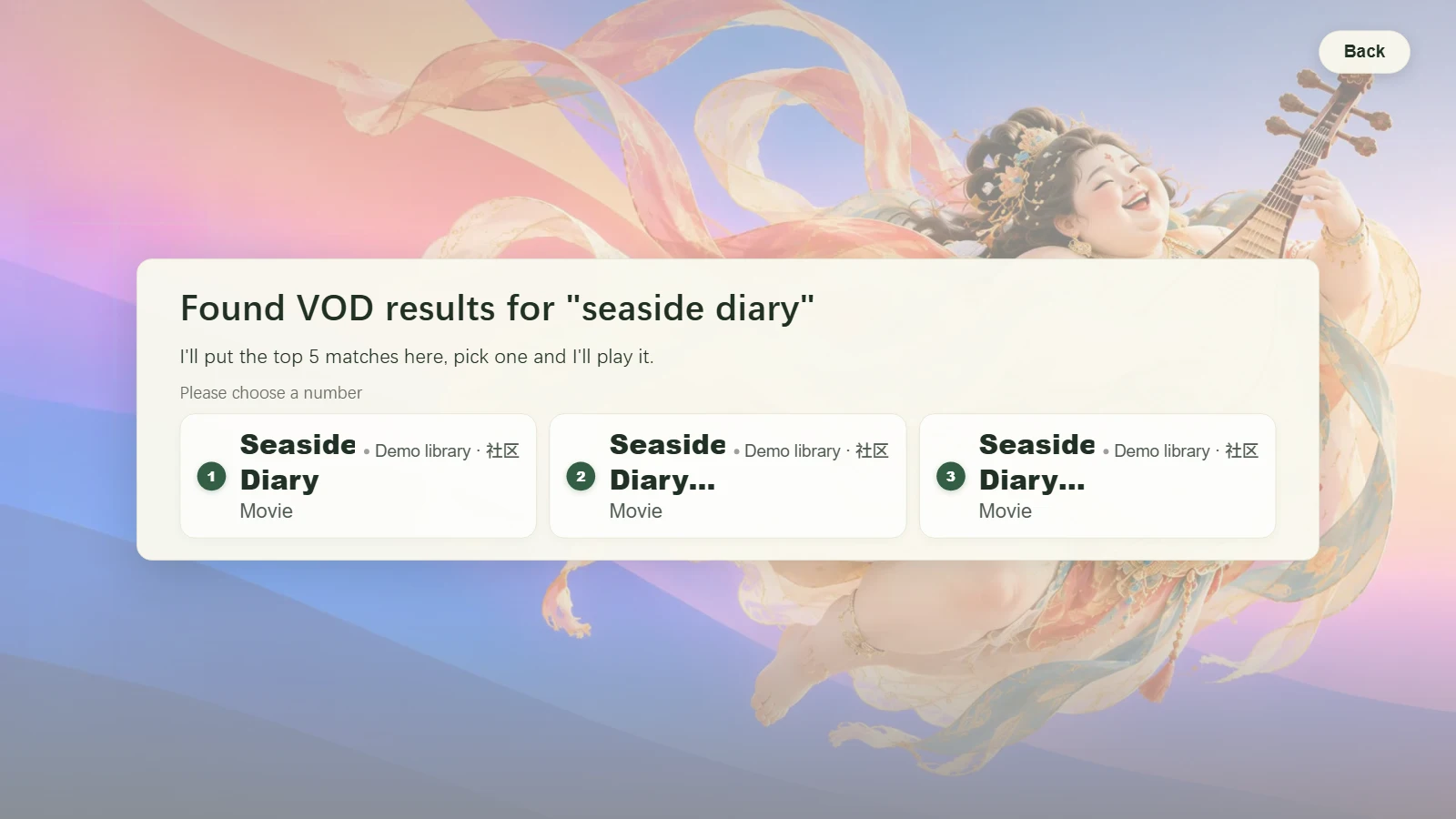
Say “Watch the movie Seaside Diary” and the TV searches the on-demand sources and home libraries you’ve set up.

Pick the result you want and press OK to play.

See how to find a movie
“Watch the movie Seaside Diary” On-demand search results
DodoMeow TV finds Seaside Diary and related titles in the demo library

But when the cartoons are on, kids just want to keep watching…

Half an hour means half an hour

It’s hard for little kids to stop when they’re caught up in a cartoon. The TV helps you stick to the time you agreed on. Say the limit out loud, and unlock it with your voiceprint.

Say how long your child can watch. DodoMeow TV tracks the app’s daily viewing time. When time is up, it switches to the learning screen.

See how to set a viewing limit
“Only watch for 30 minutes” Switches to learning at the limit
The DodoMeow TV time limit screen keeps language practice and homework available

AI helps kids with homework, speaking practice, and dictation

Stuck on a homework problem? Take a photo and work through it together.

Take a photo with your phone and scan the QR code on the TV to upload it. Open Help Me Look to zoom in on the big screen.

Connect an AI model that can read images, and it can explain the steps. Your child can ask a follow-up about any part they’re still stuck on.

Learning on the big screen means less time on phones and tablets, and fewer chances for games to distract them.

See how to put homework on the TV
Scan to upload a photo See the problem and its explanation on TV
DodoMeow TV shows how to solve the problem of charging a phone while using it

Listen to a sentence, then say it with Dodo

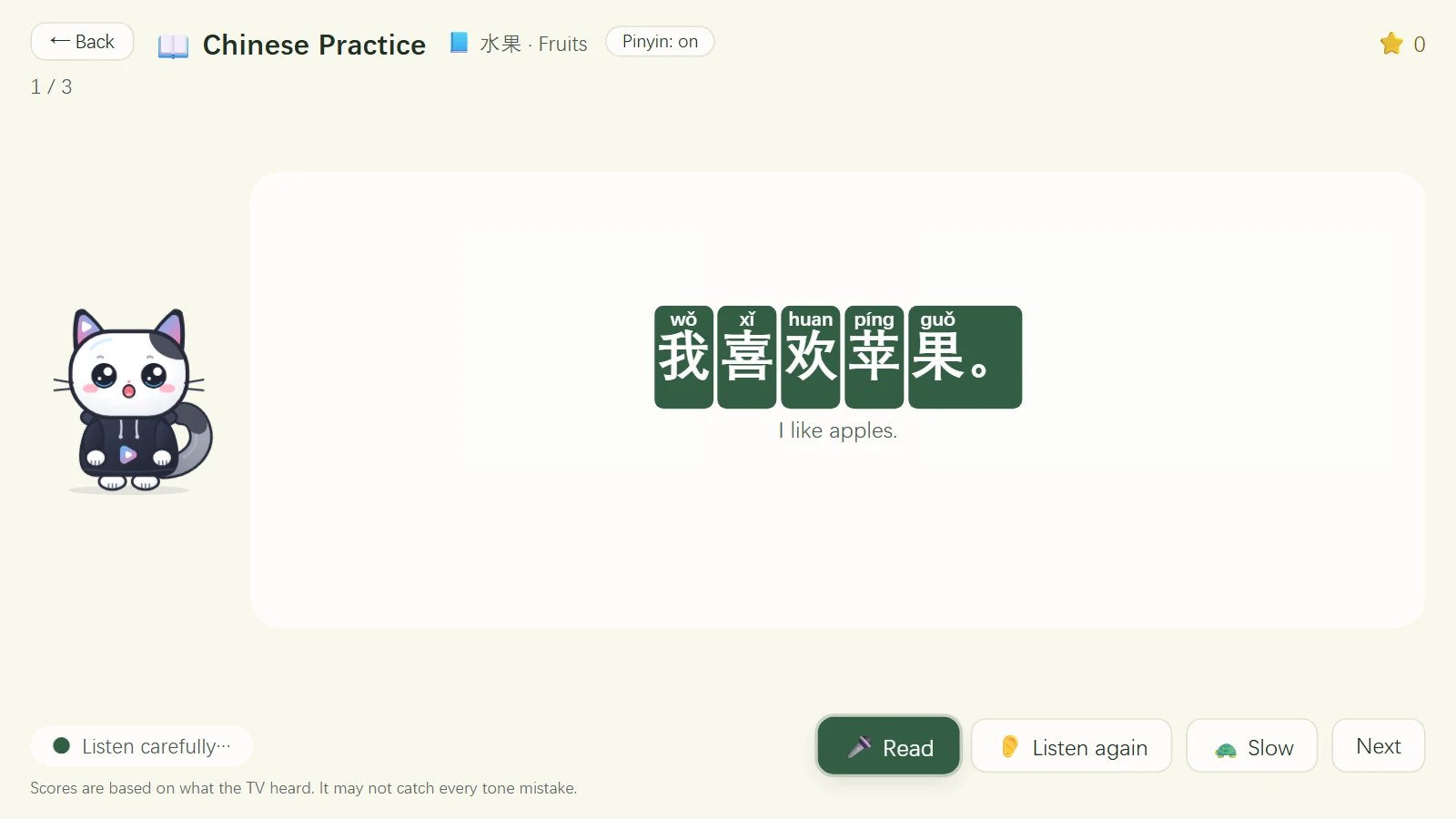
Recognizing a word is one thing. Saying it out loud takes practice. Say “Learn Chinese” to practice with Dodo on the TV. Listen, repeat, and slow down the example if you need to hear it again.

Exercises vary by level and grade, with options such as reading aloud, role play, and dictation.

See how speaking practice works
“Learn Chinese” Read aloud with Dodo
Chinese speaking practice in the international edition, with Dodo and pinyin above the words

Turn the TV into a family game console

Dad, how about a round of The King of Fighters ’98?

Show your kids the moves you learned at the arcade. Grab a controller each, pick your fighters, and see who wins. Parents get to revisit a favorite, and kids get a game they can play with them.

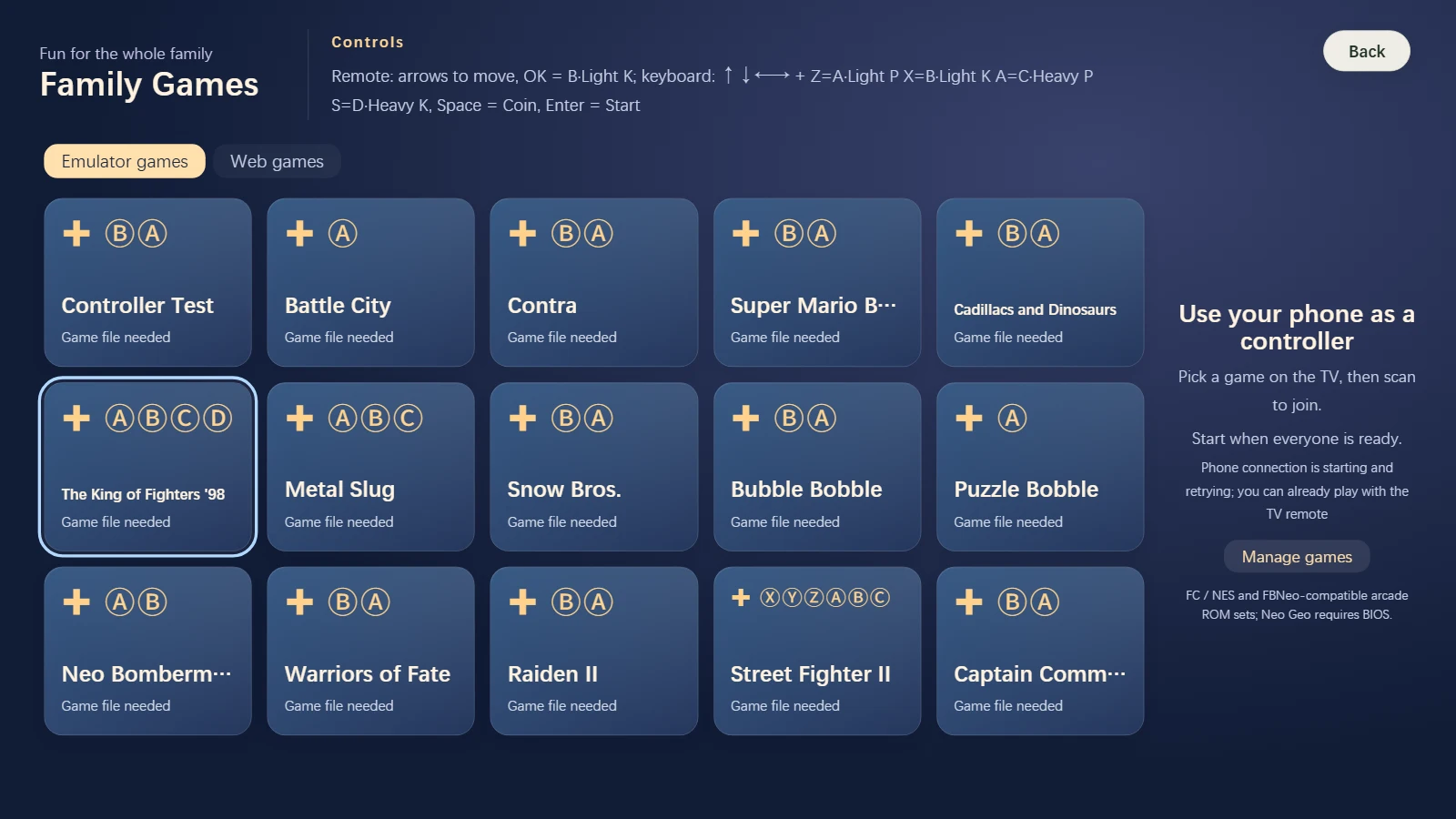
Family Games has built-in web games and supports compatible controllers for retro arcade games. For The King of Fighters ’98, import your own game files and Neo Geo BIOS.

See how to play together
Family Games Retro game library
The international Family Games library with The King of Fighters ’98 highlighted